Network Server
The Network Server turns your BRC v3 instance into a local web hub, allowing you to monitor and control your render queue from any device on your local network (LAN) without installing any additional software.
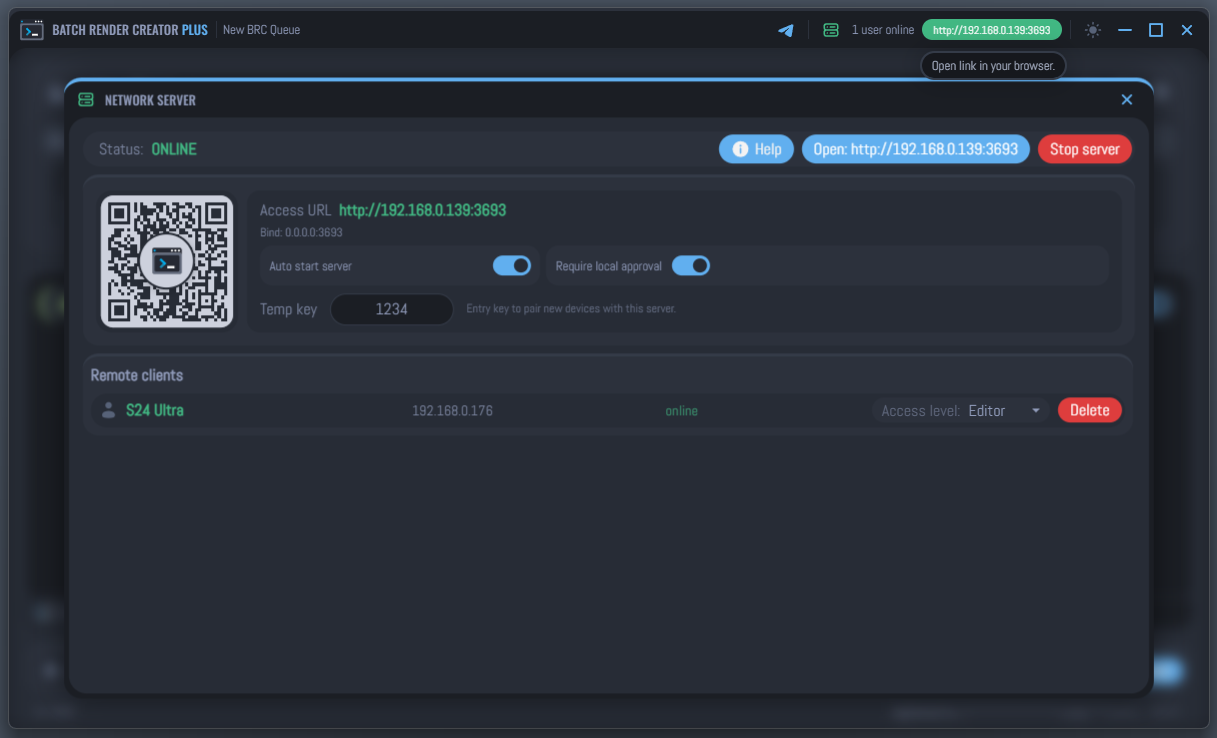
Multi-Device Monitoring
You can access the BRC dashboard from any web browser on:
- Other Computers (Windows, Linux, macOS)
- Tablets (iPad, Android Tablets)
- Smartphones (iPhone, Android)
This is extremely useful for monitoring long renders from your couch or managing multiple rendering machines from a single central station.
Important: Not an Automatic Render Farm
BRC v3 does not include automatic network render management (load balancing). It does not automatically distribute frames across multiple machines.
If you are using multiple machines to render the same project:
- You must manually set different Frame Ranges on each machine.
- You must manually manage the Output Paths to ensure they don't overwrite each other.
- The Network Server is for remote monitoring and control, not for automatic distribution of computational tasks.
How to Configure
1. Start the Server
Open the Network Server window in BRC and click Start Server. The status will change to ONLINE and a local URL (e.g., http://192.168.1.15:3693) will be displayed.
2. Connect Your Device
There are two ways to connect a remote device:
- Scan QR Code: Use your tablet or phone's camera to scan the QR code displayed in the window. This is the fastest method.
- Manual Entry: Type the Access URL directly into your device's browser.
3. Pairing (Temp Key)
For security, new devices require a 4-digit Temp Key to pair.
- Enter the Temp Key displayed in BRC into the login screen on your remote device.
- If "Require local approval" is enabled, you must also click Approve on the host machine before the device can interact with the queue.
Access Levels
You can define what each connected device is allowed to do:
- View Only: The device can see the project list, current progress, and logs, but cannot start, stop, or modify anything.
- Editor: The device has full control, allowing you to start/stop the queue, pause renders, and change post-render actions remotely.
Remote Editing Limitations
To ensure data integrity and prevent network overhead, editing jobs via the Network Server is limited to core parameters. By double-clicking a job in the remote interface, you can modify:
- Job Name
- Camera Selection
- Frame Range (Start, End, and Step)
- File Output Path
Other advanced settings (like Blender path or Python scripts) must be configured directly on the host machine.
Post-Render Actions
The HTTP client allows you to remotely decide what the host computer should do once the entire queue is finished. You can toggle between:
- None: Keep the computer running.
- Shutdown: Turn off the machine.
- Restart: Reboot the system.
- Sleep: Put the machine into low-power mode.
This is ideal for managing overnight renders without having to be physically present at the workstation when they finish.
Troubleshooting Connection
If your device cannot find the BRC server:
- Same Network: Ensure both the host machine and the remote device are connected to the same router/WiFi.
- Firewall/VPN: Active VPNs or aggressive Firewalls can block local traffic. Try disabling them if the connection fails.
- Router Isolation: Some routers have "AP Isolation" or "Guest Mode" enabled, which prevents local devices from talking to each other. This must be disabled.
- IP Address: Ensure you are using the IP provided by BRC. If your computer's local IP changes (DHCP), you may need to update the URL on your device.