Python Scripts
The Python Scripts tool allows you to customize the rendering process or execute personalized commands during background rendering. This feature provides advanced users with the flexibility to extend Blender's capabilities and tailor the render pipeline to specific project needs.
We do not provide support for custom scripts. The creation and execution of scripts are the sole responsibility of the user. We are not liable for any scripts that may corrupt data, delete files, or cause system instability.
To use this feature safely and effectively, it is highly recommended to study the Blender Python API and the Python language before deploying scripts in a production environment.
Overview
When you submit a job to the render queue, Batch Render Creator (BRC) starts a background instance of Blender. By default, BRC manages all essential settings (like resolution, camera, and output path). However, there are scenarios where you might need to execute specific logic, such as changing material properties, modifying world settings, or running cleanup tasks, before the actual render starts.
Technical Documentation
Command Line Arguments
When starting a background rendering process, BRC explicitly supplies several arguments to the blender executable. Understanding these is crucial for script compatibility:
--background: Runs Blender without a user interface.<project_path.blend>: The path to the target .blend file.--scene <scene_name>: Sets the active scene for rendering.-E <render_engine>: Specifies the engine (e.g., BLENDER_EEVEE, CYCLES).--python-expr <BRC_Script>: Evaluates BRC's internal setup logic.--python-expr <User_Script>: Evaluates your custom script.--frame-start <start>: Sets the beginning frame of the range.--frame-end <end>: Sets the final frame of the range.--frame-jump <step>: Sets the frame increment (step).-o <output_path>: Defines the destination for rendered images.-a: Commands Blender to render the animation sequence.
Internal BRC Python Setup Script
BRC uses an internal script to manage parameters that are not supported by standard command-line flags. This script ensures that BRC maintains control over the render queue logic and prevents conflicts during batch runs.
The internal script handles:
- Resolution & Scale: Overriding X/Y resolution and percentage.
- File Overwrite: Forcing
scene.render.use_overwrite = Trueto ensure the queue functions correctly. - View Layers: Optionally disabling other layers if a specific single layer is targeted.
- Camera Selection: Ensuring the correct camera is active even if the .blend file has a different one saved.
import bpy

def rendering_script():
    scene = bpy.context.scene

    # Set resolution and scale (percentage)
    scene.render.resolution_x = int("<Project_ResX>")
    scene.render.resolution_y = int("<Project_ResY>")
    scene.render.resolution_percentage = int("<Project_Scale>")

    # Enable file overwrite for render queue functionality
    scene.render.use_overwrite = True

    # Disable other layers if <Project_RenderSingleLayer> is true
    if "<Project_RenderSingleLayer>" == "True":
        target_layer_name = "<Project_LayerName>"
        try:
            for layer in scene.view_layers:
                layer.use = (layer.name == target_layer_name)
        except Exception as e:
            print(f"Failed to set view layer: {e}")

    # Set camera based on substituted value
    try:
        scene.camera = scene.objects["<Project_Camera>"]
    except:
        pass

# Run the script when starting the render
if __name__ == "__main__":
    rendering_script()
Overwriting the essential parameters set by BRC's internal script can cause the application to malfunction. These settings are fundamental for the operation of the Render Queue.
In particular, if a custom script interferes with how Blender reports rendered frames via the CLI, BRC will lose its ability to track progress. This communication is the only way the application identifies which frame is being processed and updates the queue status accordingly.
Custom User Scripts
Your custom scripts are executed after the internal BRC setup but before the render begins. This allows you to override BRC's defaults if necessary, though doing so should be done with extreme care to avoid breaking the monitoring system.
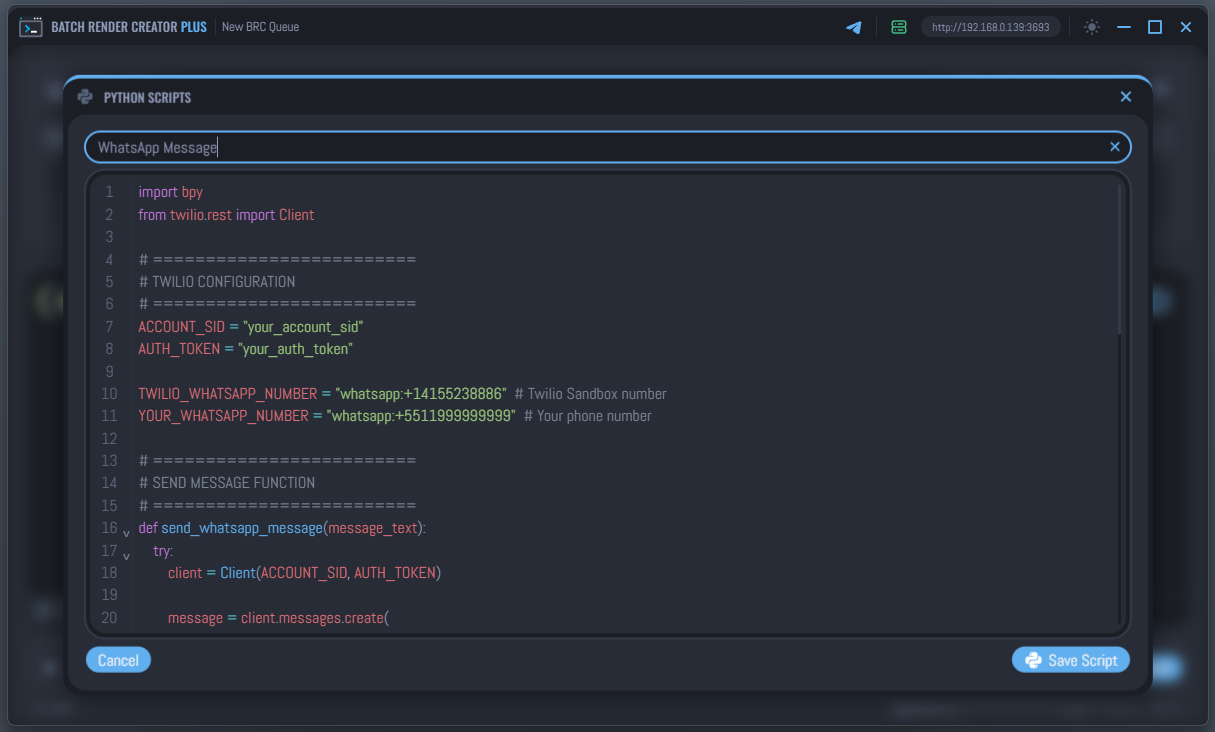
Creating a Script
- Open the Python Scripts window from the main menu.
- Click Create New Script.
- Give your script a descriptive name.
- Write your code in the integrated editor.
- Click Save Script.
Using a Script in Rendering
Once saved, you can select your script from the dropdown menu in the Python Scripts window. When a script is active, its icon will be highlighted, and it will be automatically injected into every background render process started by BRC until you set the selection back to "None".
Individual Job Scripts
In addition to global scripts, you can assign a specific Python script to an individual job. This is useful when only certain scenes or projects require custom logic.
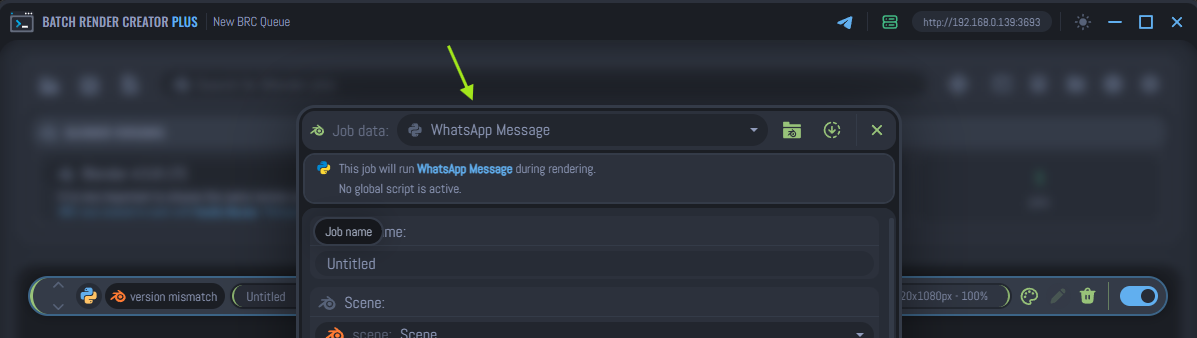
To set an individual script:
- Open the Edit Menu for the specific job in your queue.
- In the title bar of the edit window, locate the script selection dropdown.
- Choose the script you wish to apply to this job.
An individual job script selection overrides any global script currently selected. Only one script can be assigned and executed per job at a time.