Blender Setup
Managing your Blender installations is the first and most important step after installing Batch Render Creator v3. Since different Blender versions can introduce changes to shaders, geometry nodes, and render engines, choosing the correct executable is vital for a successful render.
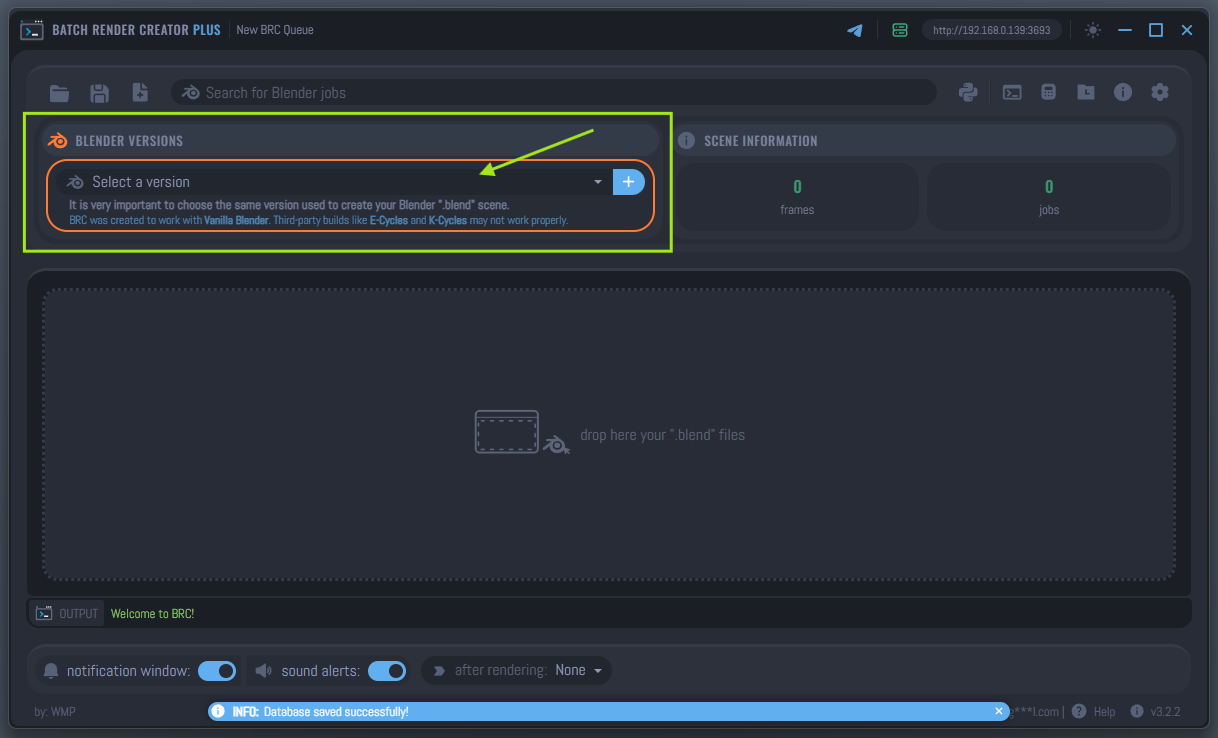
Managing Blender Versions
The Blender Versions panel, located at the top of the main interface, allows you to maintain a library of different Blender builds.
- Add New Version (
+): Click the plus icon to browse and select the Blender executable (blender.exeon Windows orblenderbinary on Linux). - Rename Version (
pencil): Once added, you can give each version a friendly name, such as "Blender 3.6 LTS" or "Blender 4.1 Production", to easily identify them. - Delete Version (
trash): Remove versions you no longer use from the library.
The Importance of Version Matching
It is highly recommended to use the exact same version of Blender that was used to create your .blend file.
Using a different version for rendering may result in:
- Broken Shaders: Changes in the Cycles or Eevee engine between versions can alter the look of your materials.
- Geometry Nodes Errors: Node behaviors often change between major releases, which can break your procedural setups.
- Missing Features: Files saved in newer versions (like 4.x) might not open or render correctly in older versions (like 3.x).
GPU Configuration (Critical)
To ensure that Batch Render Creator utilizes your graphics card (GPU) for rendering, you must configure it correctly within Blender before adding the Blender version to BRC.
Global Hardware Selection
Blender does not automatically use the GPU for rendering. You must manually enable it in the preferences of each Blender installation:
- Open the Blender executable you wish to use.
- Go to Edit > Preferences > System.
- Under Cycles Render Devices, select your hardware backend (e.g., OptiX, CUDA, HIP, or Metal).
- Check the boxes for your specific GPU(s).
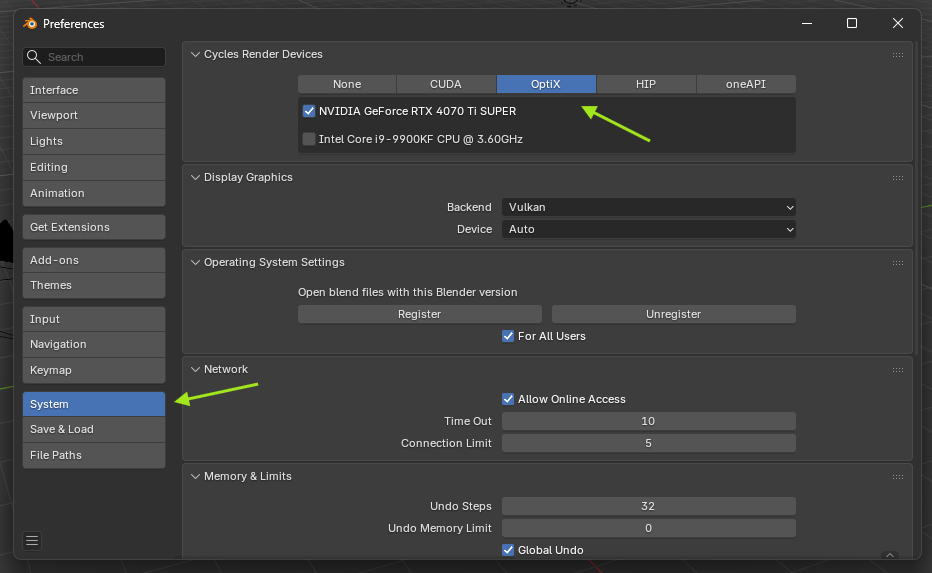
After selecting your GPU, you must click the Save Preferences button (the three-bar menu in the bottom-left of the Preferences window).
Blender only persists these changes to disk when this button is clicked or when all active instances of that Blender version are closed. If you add the Blender version to BRC without saving these preferences, it will default to CPU rendering, which is significantly slower.
Scene-Level GPU Compute
In addition to the global hardware selection, your specific .blend project must be set to use GPU Compute as the render device.
- In the Properties panel, go to the Render tab .
- Ensure the Device dropdown is set to GPU Compute.
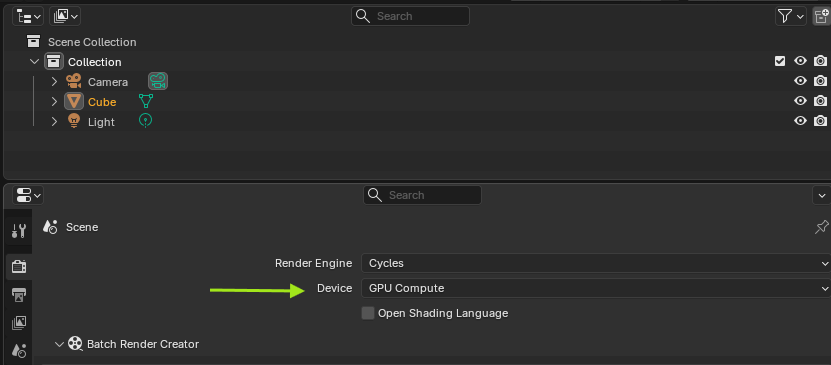
If this is set to CPU, Blender will ignore your global preferences and render using the processor, regardless of your hardware availability.
Vanilla Blender vs. Third-Party Builds
BRC v3 is designed and optimized to work with official "Vanilla" Blender builds from blender.org.
While many users utilize performance-optimized builds like E-Cycles or K-Cycles, these versions modify the internal source code of Blender. This can sometimes interfere with how BRC monitors render progress via the CLI.
If you encounter bugs while using third-party builds, please contact the build developers or switch back to the official Blender version to ensure full compatibility with the BRC monitoring engine.