Telegram Bot Integration
Take your render queue in your pocket! The Telegram Bot integration allows you to monitor and control BRC v3 remotely from any device with Telegram installed, without needing complex network configurations.
Security First
The integration is built with a "First-User Lock" policy. Pairing is only accepted via a one-time PIN sent in a direct private chat. The first user who completes the pairing becomes the exclusive authorized controller. All messages from other users or groups are strictly ignored.
Your credentials (Bot Token and Chat IDs) are encrypted locally using AES-GCM with a key bound to your hardware. If you move your database to another computer, the connection will be automatically reset for your security.
How to Configure
Follow these steps to create your own bot and link it to BRC v3:
Step-by-Step Guide:
- Create the Bot: Search for
@BotFatheron Telegram and send the command/newbot. - Display Name: Choose a name for your bot (e.g.,
My Office Render Bot). - Username: Choose a unique username ending in
bot(e.g.,Studio_BRC_bot). - Get the Token: BotFather will provide an HTTP API Token. Copy this token.
- Enter Token in BRC: Open the Telegram window in BRC (Plus version required) and paste the token when prompted.
- Generate PIN: Click Generate PIN in BRC. It will show a command like
=/start 123456. - Pairing: Click the link to open your bot chat in Telegram and send the command exactly as shown.
- Confirmation: Once paired, the bot will send you a "Welcome" message and the BRC dashboard will activate.
Remote Commands
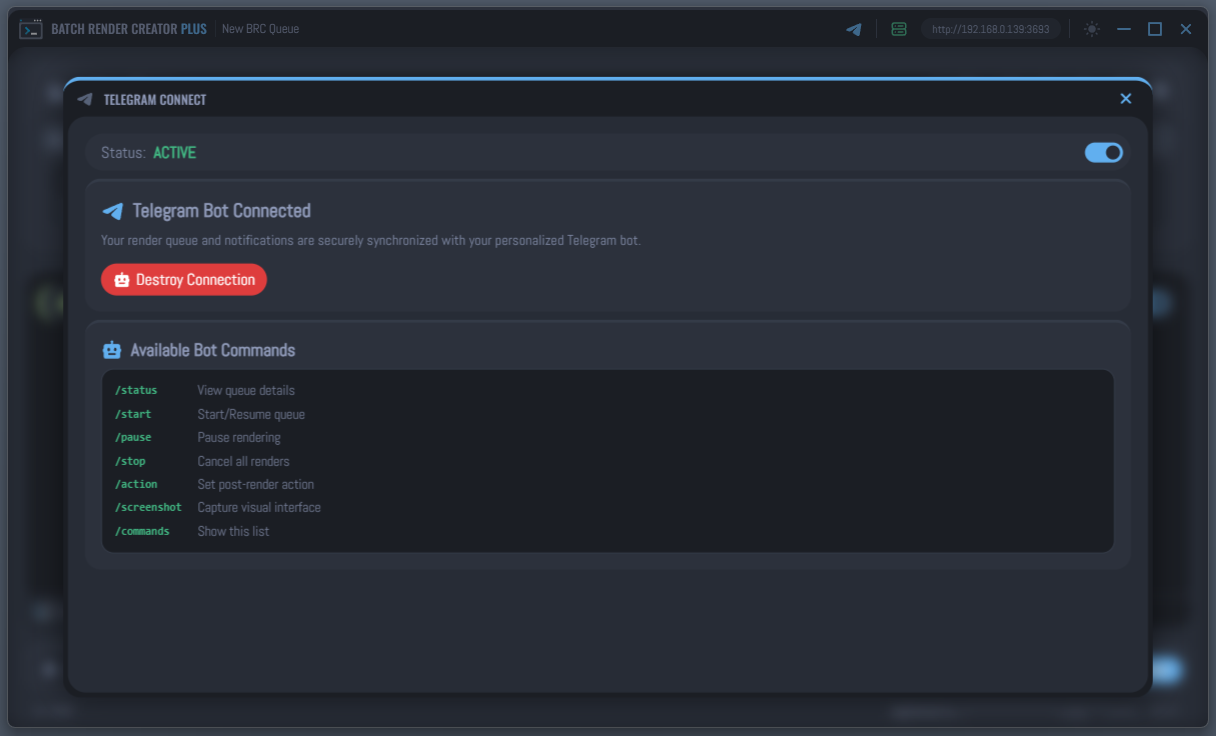
Once paired, you can send the following commands to your bot:
| Command | Description |
|---|---|
/status |
View current render progress, ETA, and job list. |
/start |
Start or resume the render queue. |
/pause |
Pause the current render (requires confirmation). |
/stop |
Stop and cancel the entire queue (requires confirmation). |
/action |
Change the post-render action (Shutdown, Sleep, Restart, or None). |
/screenshot |
Receive a real-time screenshot of the BRC v3 interface. |
/commands |
List all available remote commands. |
Managing Connection
You have full control over the communication between BRC and Telegram.
Deactivate Communication
If you want to temporarily stop the bot from sending notifications or receiving commands, open the Telegram window and use the Status Toggle.
- Active: Bot is polling for commands and sending updates.
- Disabled: Bot is offline. No data is sent to or from Telegram.
Destroy Connection
To completely remove the bot credentials from your machine, click the Destroy Connection button.
- This will erase the encrypted Token and Chat IDs from your local database.
- The bot will no longer be able to communicate with this BRC instance.
- To use it again, you will need to perform the Pairing Process from scratch.
For maximum security, if you no longer intend to use a specific bot, you can also use @BotFather on Telegram to Revoke the token or Delete the bot entirely.