System Logs & Support
The Logs window is one of the most critical tools in Batch Render Creator v3. It provides a real-time stream of application events, rendering data, and background process output. This technical information is essential for troubleshooting and is the primary resource used when reporting bugs or technical issues.
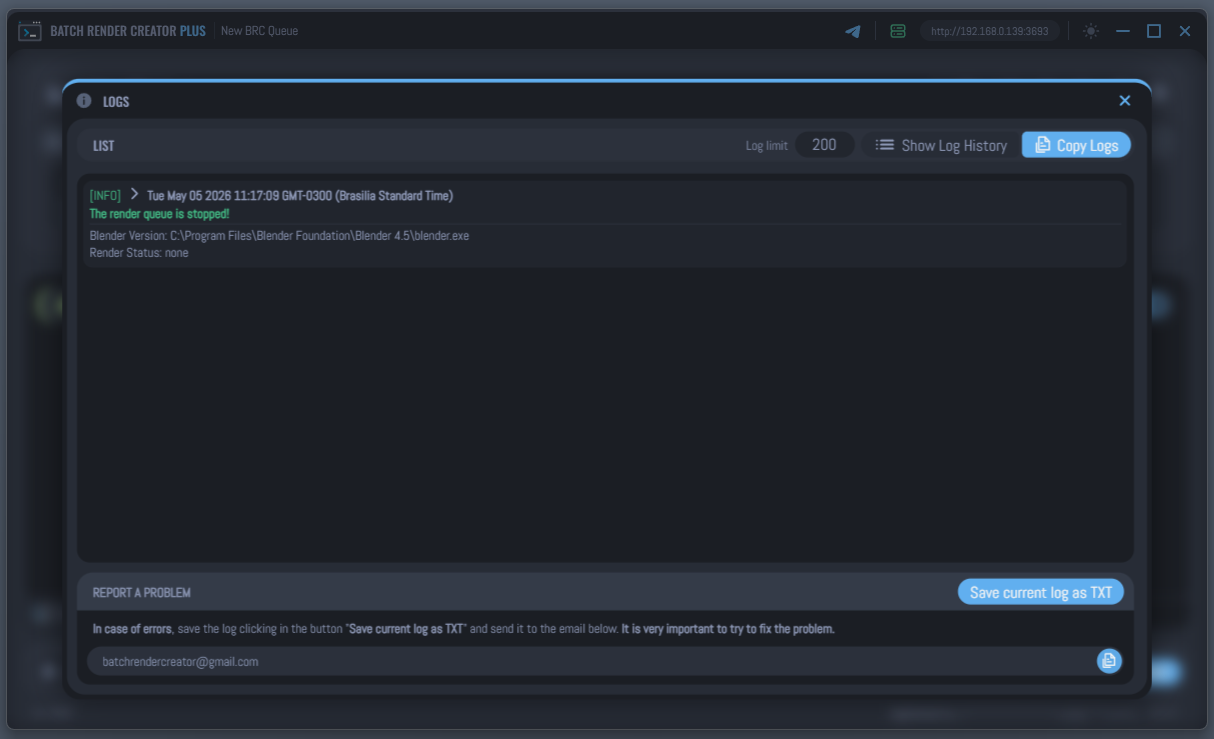
What the Logs Show
The log system captures various types of information to help you monitor your production:
- Application Actions: Loading projects, starting/stopping the queue, and background process initialization.
- Blender Console Output: Real-time feedback from Blender during rendering, including frame progress and technical specs.
- Warnings & Errors: Color-coded alerts indicating potential issues (orange) or critical failures (red).
- Technical Metadata: For every render, the log records the Blender version, render engine, resolution, scale, and frame range used.
Managing Logs
Log Entries Limit
You can configure the number of entries shown in the terminal window (from 50 up to 1000). To adjust this, change the Log Limit value in the top bar of the window.
Viewing History
The tool keeps a history of logs from previous sessions. Click the Show Log History icon to open a menu of past log files, organized by date and time.
How to Report a Problem
If you encounter a bug or an unexpected render failure, follow these steps to provide the development team with the information needed to fix it:
1. Open the Logs Window
Click the Open Logs icon in the Top Menu at the bottom of the interface.
2. Export the Log
Click the Save current log as TXT button. This will generate a text file containing the full technical history of your current session.
3. Include Your Environment Information
When sending a report, always include the environment where the issue happened:
- BRC Version: Tell us the exact version of Batch Render Creator you are using.
- Operating System: Specify whether you are using Windows or Linux.
- Linux Distribution: If you are on Linux, include the distro name and version, such as Ubuntu 24.04, Linux Mint 22, Fedora 41, or similar.
- Blender Version: Include the Blender version used in the affected render.
4. Describe What Happened
Do not send only the log file. Also explain the context of the problem:
- What you were doing when the issue happened
- What you expected to happen
- What actually happened
- Whether the problem happened once or if you can reproduce it consistently
Good example:
"I was duplicating a job by frames and then started the queue. I expected BRC to create the new jobs and render normally, but the queue stopped after the first item."
5. Provide Step-by-Step Reproduction
Whenever possible, include a clear sequence of steps so the problem can be reproduced.
Example format:
- Open BRC
- Load the project
- Right-click the job
- Click Duplicate by Frames
- Enter
10,20-30 - Start the render queue
- Observe the error
The more precise your steps are, the easier it is to reproduce and fix the issue.
6. Contact Support
- Copy Email: Click the Copy icon next to the support email:
batchrendercreator@gmail.com. - Send Report: Email the exported TXT file together with your BRC version, operating system details, a description of what you were doing, and the exact step-by-step instructions needed to trigger the problem again.
Without the logs, it is often impossible to determine why a render failed. The log file contains the specific error codes returned by Blender, which are crucial for identifying if the problem is in the scene, the hardware, or the application itself.
Vanilla Blender Support Policy
BRC is built and tested to work with official Vanilla Blender builds. This means the standard Blender releases distributed by the Blender Foundation are the supported reference environment for rendering through the command line.
If you use:
- a custom Blender build
- a third-party optimized build
- or third-party addons that change Blender's default behavior
then BRC may no longer behave the same way as it does with the official Blender release.
If a custom Blender build or third-party addon changes how Blender behaves in command-line rendering, it is not possible for BRC support to guarantee compatibility or provide full support for that environment.
In these situations, you should contact the developer of that custom build or addon and ask them to provide proper support for command-line rendering compatibility.
For more details, see Vanilla Blender vs. Third-Party Builds.