Render Schedule
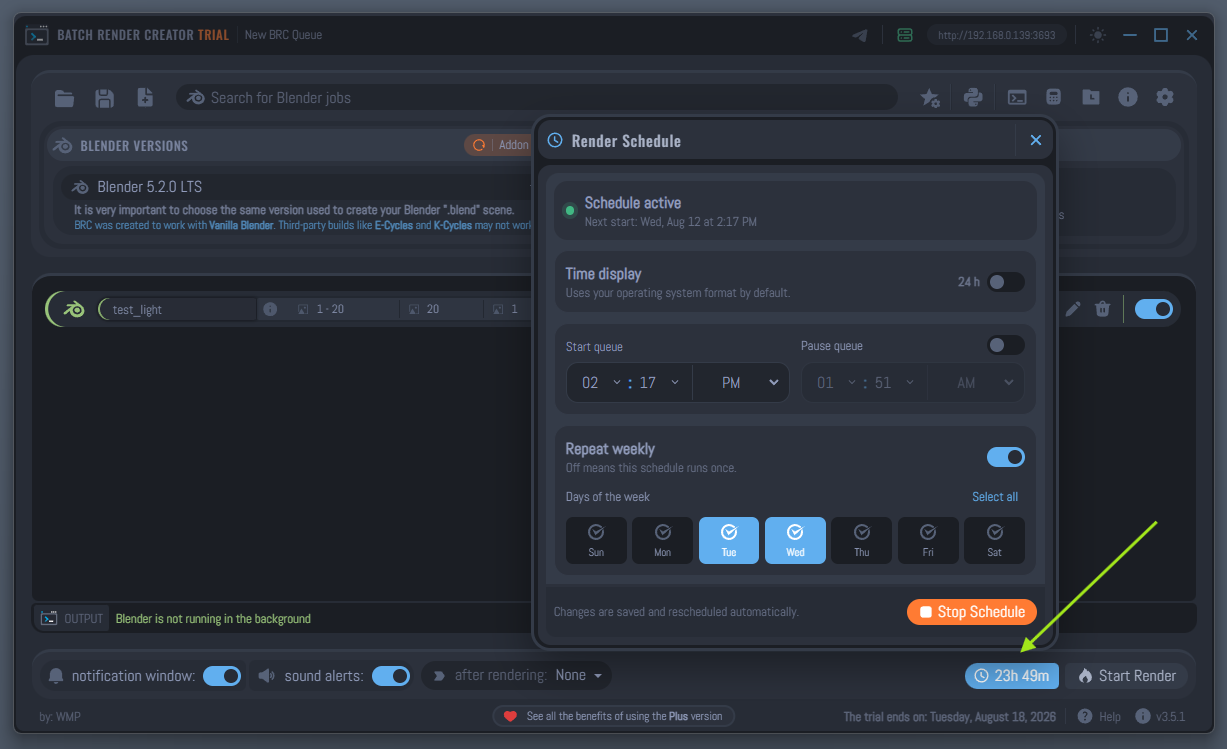
Introduced in BRC 3.5.1, Render Schedule lets BRC start the local render queue at a future time, run it once or on selected weekdays, and optionally pause a scheduler-started queue at a second time. It is useful for starting long renders during off-hours without changing the jobs already prepared in the queue.
Render Schedule is available in the Plus version and during an active Plus trial. Free users can open the panel and review its options, but cannot activate a schedule. See Plus vs Free for feature availability.
Before You Schedule
Render Schedule uses the same local queue described in Executing Renders. Before activating it:
- Add and enable at least one job.
- Load every enabled job so BRC has all required scene data.
- Select a default Blender installation.
- Keep BRC open until the scheduled action occurs.
The clock button beside Start Render opens the Render Schedule panel. While a queue is rendering or paused, the clock remains available beside the render controls so you can review the current schedule and its safety restrictions.
Configuring Render Schedule
1. Choose the Time Display
Use Time display to switch between the 12-hour AM/PM format and the 24-hour format. This changes only how the time is displayed; it does not change the scheduled moment.
Hours and minutes can be typed directly using numbers. The arrow beside each value opens the complete list of valid values, while the AM/PM field can be opened by clicking anywhere inside it.
2. Set the Start Time
Set Start queue to the time when BRC should start or resume the queue.
- With Repeat weekly turned off, the schedule runs once. If today's selected time has already passed, BRC schedules it for the following day.
- With Repeat weekly turned on, BRC uses the next selected weekday that has not passed.
3. Configure an Optional Pause
Turn on Pause queue and select the time when BRC should pause the render.
If the pause time is later than the start time, both actions occur on the same day. If the pause time is equal to or earlier than the start time, BRC schedules the pause for the following day and displays the complete render duration below the time fields.
For example, starting at 10:00 PM and pausing at 7:00 AM creates a nine-hour render window that ends the next morning.
Automatic pause is available only for the exact queue session started by Render Schedule. It cannot pause an unrelated manually started queue.
4. Choose One-Time or Weekly Operation
Leave Repeat weekly off to run the schedule once. Turn it on to select one or more weekdays.
- Use the weekday buttons to choose the active days.
- Use Select all to schedule every day.
- Use Clear all to remove all selected days.
A weekly schedule advances to the next selected day after each due start. If a scheduler-started queue was automatically paused, the next scheduled start resumes the same job at its saved frame instead of restarting the queue from the beginning.
5. Activate the Schedule
Click Activate Schedule after reviewing the settings. BRC checks any Blender version or Workbench compatibility warnings one at a time before activation, so the scheduled start will not wait for an unattended confirmation. Canceling a warning leaves the schedule inactive.
After the review, BRC saves the configuration and displays the next start time at the top of the panel. If a relevant compatibility condition changes later, BRC stops the schedule at the due time and asks you to review and activate it again instead of opening a modal. Use Stop Schedule to cancel all pending scheduled actions.
Changes made to an active schedule are saved and rescheduled automatically. Display and recurrence changes do not cancel a pause already pending for the current scheduler-started queue; changing the pause option or pause time updates that pause intentionally. If notification windows are enabled, BRC sends one updated summary after you close the panel when something changed.
When the Schedule Takes Action
The action taken at the scheduled start depends on the current queue status:
| Queue status | What Render Schedule does |
|---|---|
| Ready / stopped | Starts the prepared queue normally. |
| Paused by Render Schedule | Resumes the same job and frame, preserving completed work. |
| Paused manual queue | The scheduled start can resume the paused queue, but automatic scheduled pause remains unavailable because the queue was not originally started by Render Schedule. |
| Already rendering | Does nothing, does not interrupt the active render, and does not show start countdown notifications. A one-time occurrence is consumed; a weekly schedule advances to its next selected day. |
| Done | Does not restart the completed queue. BRC notifies you that the scheduled start was skipped, then consumes the one-time occurrence or advances the weekly schedule. |
| No active jobs | Cannot start rendering. BRC displays an error notification, then consumes the one-time occurrence or advances the weekly schedule. |
| BRC is closed | Cannot start or resume the queue because Render Schedule runs locally inside BRC. |
Any queue state that cannot safely start or resume is left unchanged. Render Schedule never launches a second queue over an active render.
After the computer wakes from sleep, a weekly schedule advances directly to its next future occurrence instead of replaying every missed day. When equal start and pause times create consecutive 24-hour windows, the queue continues through the shared boundary without being left paused. Unexpected start or pause failures are retried up to three times at one-minute intervals before BRC reports a final error.
Manual Queue and Pause Protection
When the current queue was started manually, opening Render Schedule automatically turns Pause queue off and disables its controls. A warning below the time fields explains that scheduled pause is restricted to queues started by Render Schedule, preventing an old pause time from stopping the wrong render.
Starting the queue manually with the main Start Render button also cancels any pending scheduled start and scheduled pause. The manual queue then runs entirely under the normal controls described in Executing Renders.
Render Schedule identifies the exact queue session it started. If that queue finishes, stops, or is replaced by a new manual session, its pause authorization is removed.
Notifications and Closing BRC
When notification windows are enabled, Render Schedule can notify you when:
- the schedule is activated or updated;
- a queue that can start or resume is approaching its scheduled time;
- a completed queue causes a scheduled start to be skipped;
- a scheduler-started queue is paused automatically.
Start reminders are sent once during the final five-minute window and once at 15 seconds. They remain suppressed while the Render Schedule panel is open, so changing a time never displays a countdown before you finish editing and close the panel. They are also not sent when a queue is already rendering or has already completed.
Every Render Schedule notification event is recorded with its type, title, and content in System Logs, helping future troubleshooting and support reports. This log entry is created even when notification windows are disabled; the preference controls only whether the separate window appears.
Render Schedule cannot start the queue while BRC is closed. If you try to close BRC while a start schedule is active, BRC displays a warning with the schedule summary and lets you either keep the application open or close it anyway.
The computer may remain unattended, but BRC itself must remain running and the prepared files, Blender installation, and output locations must stay available.