Executing Renders
Starting a render in Batch Render Creator is a straightforward process, but it requires a few prerequisites to ensure that everything runs smoothly and without errors.
Requirements to Start
To enable the rendering process, the application checks for two essential conditions:
- Blender Instance: You must have at least one Blender Version/Instance defined in the Blender Setup settings.
- Job Queue: You must have at least one Job or Scene added to your project list Submitting Jobs.
Once these conditions are met, the Start Render button will become visible in the top menu bar, allowing you to begin the queue.
If you plan to use your GPU for rendering, ensure your Blender installation is correctly configured beforehand. Many users experience slow renders because they forget to enable and save their GPU preferences in Blender, causing the system to default to slower CPU rendering.
Review the GPU Configuration Guide to verify your settings before proceeding.

Version Compatibility
It is highly recommended, just like in Blender itself, to always use the same Blender instance/version for rendering that was used to create your scene. This prevents compatibility issues, missing features, or unexpected rendering artifacts.
If the application detects that the scene was created in a different version than the one selected for rendering, a warning will be displayed.
A mismatch between the scene version and the render version can lead to serious rendering errors or even a crash.
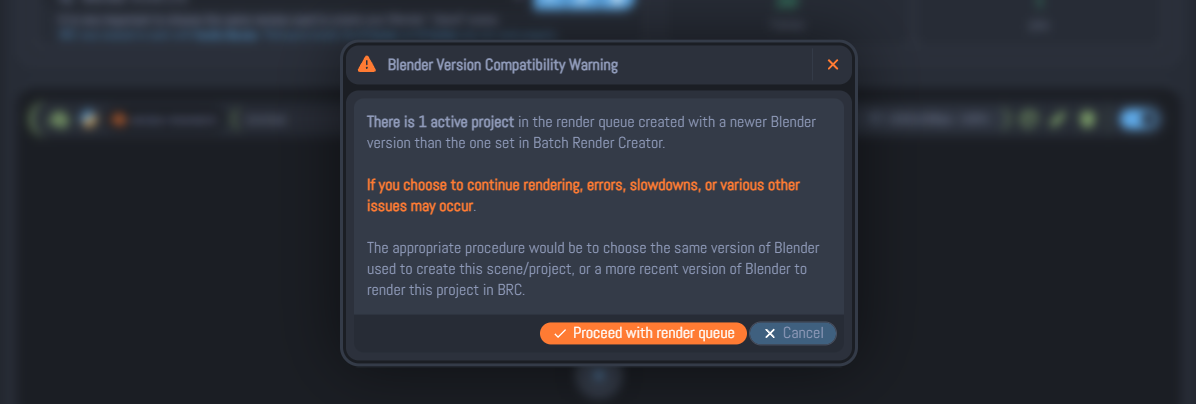
If you see this alert, you can still proceed, but you do so at your own risk. It is always safer to match the versions to ensure the highest quality and stability.
Video Format Warning
While Batch Render Creator allows you to render directly into video formats (like MP4 or AVI), it is not recommended for background rendering.
The primary reason is that background renders in video format cannot be paused without losing all current progress. If the render is interrupted or stopped, the file may become corrupted or incomplete, requiring a full restart of the job.
A warning box will be displayed on the left side of the job in the project list whenever a video format is detected, reminding you of these limitations.
Pausing Renders
Batch Render Creator allows you to pause a running render queue at any time. However, it is important to understand the persistence of this state:
- Active Session Only: The pause state and the current render progress are only maintained as long as the application remains open.
- Closing the App: If you close the application while a render is paused, the process will be completely reset.
- History Loss: Upon restarting the application, the paused state and any volatile progress history for that specific session will be lost, and the render will need to be restarted from the beginning or from the last saved frame.
Closing the BRC interface will terminate all active background processes and clear the temporary session history.
Action Bar
The Action Bar is located at the bottom of the BRC interface. It provides quick access to monitoring tools and notification settings that keep you informed about your render progress.

Notifications
You can enable desktop notifications to stay updated on the following events:
- Render Finished: Alerts you when a single job or the entire queue is complete.
- Errors Encountered: Notifies you immediately if a render fails or encounters a system error.
- Render Retries: Alerts you when the system begins a new attempt to render a failed frame or job.
Sound Alerts
In addition to visual notifications, you can enable Sound Alerts. These will trigger an audible notification whenever:
- A notification window appears.
- A render queue is successfully finalized.
After Rendering
The Action Bar includes a dropdown menu where you can define a system action to be executed automatically once the entire render queue is finished. Available actions include:
- Shutdown: Turns off the computer.
- Sleep: Puts the system into sleep mode.
- Restart: Reboots the computer.
Once the render is complete, the software will wait for 60 seconds by default before executing the selected action. During this time, a timeout modal will be displayed, showing the countdown and allowing you to manually cancel the action if needed.
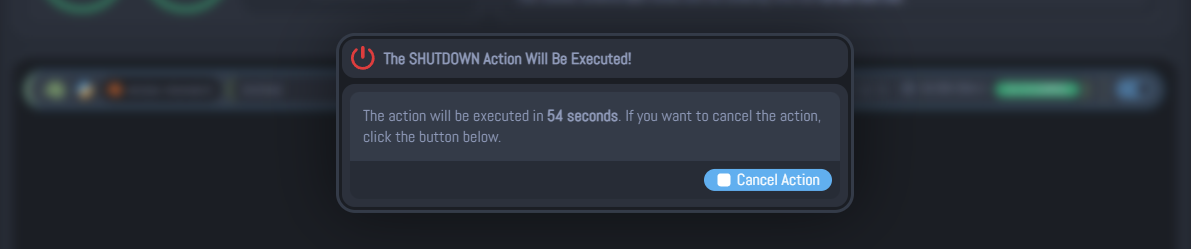
The default 60-second wait time can be customized in the Notification Timeout.
This is especially useful if you are working on other tasks or are away from your workstation while the render is running.