Settings
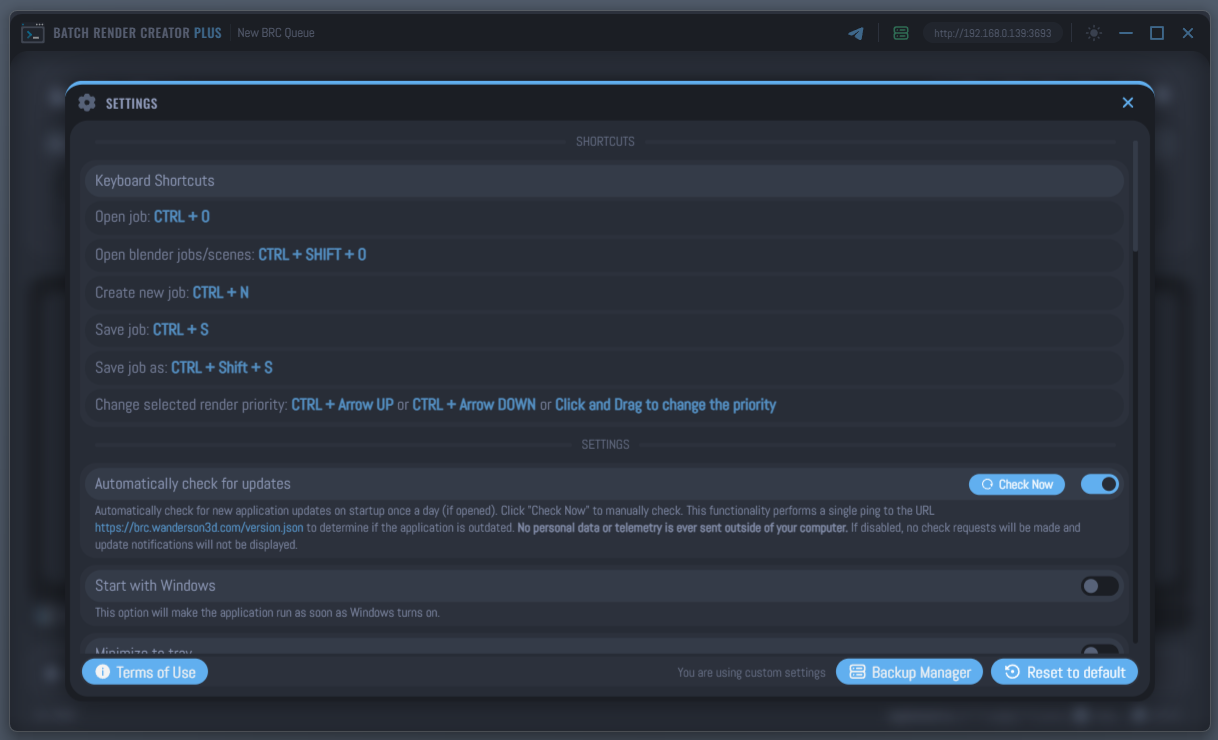
In this section, we will explore every configuration available in Batch Render Creator (BRC). Understanding these functions will help you optimize your workflow, ensure system stability, and customize the interface to your needs.
Keyboard Shortcuts
Speed up your management with these essential hotkeys:
| Action | Shortcut | Version Note |
|---|---|---|
| Open job | CTRL + O |
Basic workflow |
| Open Blender jobs/scenes | CTRL + SHIFT + O |
Bulk import |
| Create new job | CTRL + N |
Manual entry |
| Save job | CTRL + S |
Persistence |
| Save job as... | CTRL + SHIFT + S |
Duplication |
| Increase Priority | CTRL + Arrow UP |
Move up in queue |
| Decrease Priority | CTRL + Arrow DOWN |
Move down in queue |
Some shortcuts related to manual saving are more prominent in the basic version, as the PLUS version often handles persistence automatically through advanced database management.
General Preferences
Automatically check for updates
When enabled, BRC will automatically check for new application updates on startup once a day. You can also click the Check Now button to perform a manual check at any time.
- Update URL:
https://brc.wanderson3d.com/version.json - Privacy & Security: This functionality performs a single read-only request (ping) to retrieve the latest version JSON. No personal data, license keys, telemetry, or system information is ever collected or sent outside of your computer. The update URL is public and open for anyone to access. If disabled, no background check requests will be made and update notifications will not be displayed.
Start with Windows / Linux
When enabled, the application will automatically launch as soon as your operating system starts. This is ideal for dedicated render nodes.
Minimize to tray
If active, clicking the "Close" button or "Minimize" will send the application to the system tray (near the clock) instead of closing it completely. This ensures that renders continue in the background.
Automation & Addon
Auto load data from ".blend" jobs
When you add a new project to the queue, BRC will immediately read the internal data of the .blend file (Scenes, Cameras, Resolution, Frame Range).
Automatically Accept Projects (Blender Addon)
If the Blender Bridge Addon sends a job while BRC is open, this setting determines if the job is added to the queue immediately without manual confirmation.
Network Server
Settings for the built-in HTTP server that allows remote monitoring.
- Auto Start Network Server: Launches the API server automatically on application boot.
- Require local approval: A security layer. New devices (phones, tablets) must be manually approved on the workstation before they can view or edit the queue.
- Default access level: Defines if new devices start with View Only (cannot stop/start renders) or Editor (full control) permissions.
Notifications & Alerts
These functions work together to keep you informed about the rendering status.
- Notification Window: Displays a small overlay on your desktop showing the current frame, progress percentage, and any errors.
- Sound alerts: Emits specific sounds when a single job finishes, when the entire queue is completed, or when a critical error occurs.
Data Persistence
Settings to ensure you don't lose your work when closing the app.
- Keep BRC jobs when closing: Saves the current state of the main queue. When you reopen BRC, all projects (including finished ones) will be right there.
- Keep temporary Blender jobs when closing: Specifically saves the "pending" list received from the Blender addon that hasn't been moved to the main queue yet.
Blender Auto-Recovery
This is one of the most powerful features of BRC v3. It acts as a watchdog for the Blender process.
- Blender Auto-Recovery: The main switch for the monitoring engine.
- Recovery Retry Attempts: Defines how many times BRC will try to restart Blender if it crashes.
- PLUS Version: Up to 999 attempts.
- FREE Version: Limited to 2 attempts.
- Time to Recover When Stopped: If the Blender console stops sending data (possible freeze), BRC waits for this specific time (10s to 1200s) before killing and restarting the process.
Dynamic Recovery Timeout
Starting in version 3.2.3, BRC includes Dynamic Recovery Timeout as part of the Blender Auto-Recovery system. When enabled, BRC first uses Time to Recover When Stopped as the initial protection window, then automatically switches to a dynamic timeout after the first frame is completed. From that point on, the application continuously measures the average render time per frame and calculates the inactivity limit as average frame time x 1.5, with a minimum floor of 30 seconds.
This system enters into action only while a job is actively rendering and BRC is still receiving normal Blender console monitoring events. Every new output line from Blender resets the inactivity timer. If the CLI stops sending new output before the current timeout expires, BRC assumes the process has frozen, stops Blender, and starts the configured recovery attempt flow. This makes recovery much smarter than a fixed timeout alone, because light scenes can recover faster while heavier scenes receive a larger safety window to avoid false restarts.
Setting this value too low may trigger false positives, causing BRC to terminate Blender while it is still working. We recommend setting this time to be at least equal to the average render time of your longest frame. This ensures that the recovery engine only intervenes if Blender has genuinely stopped communicating via the CLI.
Advanced Metrics & Limits
Post-Render Delay Scheduler
Sets a buffer time (in seconds) after the last render finishes before any "Auto-Action" (like Shutdown or Sleep) is triggered. This gives you a window to cancel the action if you return to the computer.
Render History Limit
Defines the maximum number of previous render sessions kept in the history log.
- PLUS Version: Stores up to 50 sessions.
- FREE Version: Stores up to 5 sessions.
Log Entries Limit
Controls how many lines of system logs are kept in memory (Range: 50 - 1000). Higher values provide more history but use more RAM.
Notification Timeout
Determines how long desktop notifications remain visible before fading away (Range: 1s - 60s).
Terms of Use & Privacy
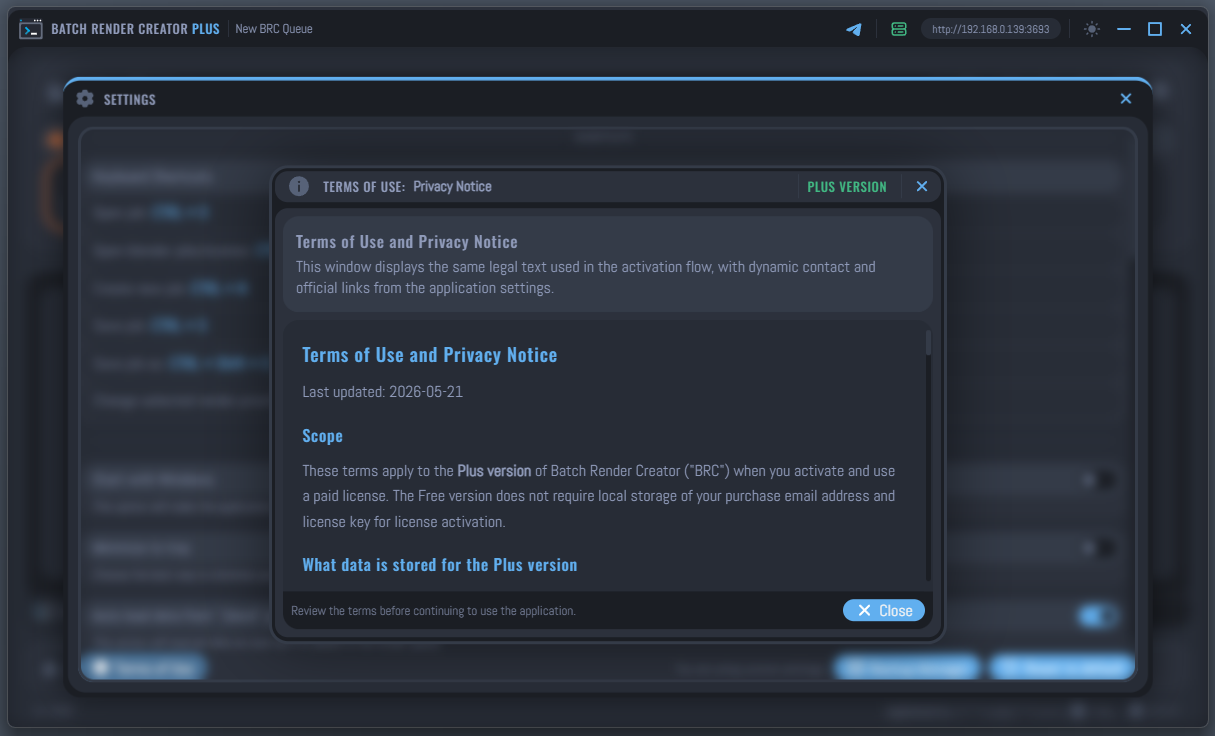
You can now easily consult the Terms of Use and Privacy Notice directly within the application. Simply click the Terms of Use button located on the left side of the Settings window.
This section provides transparency regarding how your data is handled locally (in compliance with standard privacy guidelines like GDPR) and allows you to review the licensing agreements at any time.
System Utilities
For advanced maintenance and data protection, BRC v3 includes specialized tools located at the bottom of the Settings window:
- Manage Backups: Access the snapshot history to restore your database to a previous state in case of corruption or data loss.
- Reset to Default: Restore all application behaviors to factory settings while preserving your Blender installations and render history.
- Blender Setup: Manage your Blender installations and ensure version compatibility for your projects.
Users on the FREE version will encounter limits on recovery attempts and history storage. Upgrading to the PLUS version removes these restrictions and allows for unlimited queue management.